Excel to CRM Migration: A Step-by-Step Guide to Importing Contacts and Mapping Fields
Teleerp 5 min read
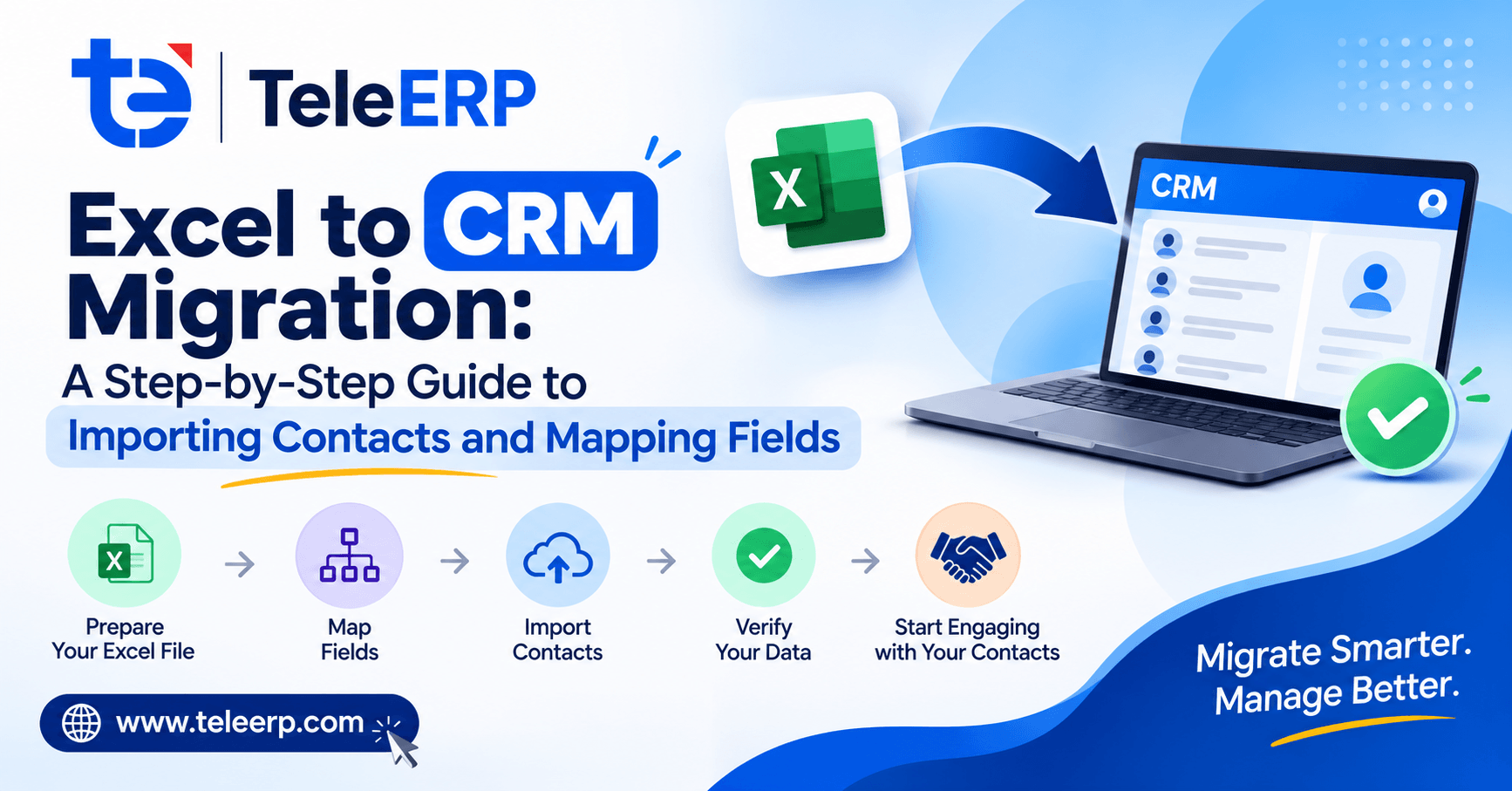
Clean your data, map your fields, perform a test import, and verify that everything has gone correctly before uploading the full file. At TeleERP, we would recommend cleaning your data within Excel first. This ensures that data is placed in the correct place within the lead management Telecalling CRM software.
Prepare data in Excel
Ensure that the column names (for example ‘First Name’, ‘Phone Number’ and ‘Company’) are in the top row of your sheet. This will make mapping fields much easier.
Give a unique reference to each contact (such as e-mail address or customer code). Each row should have a unique value in this column.
Duplicate the data so that each contact appears on a separate line in the file. Place all contacts on one tab of the sheet. If they are on multiple tabs, it is easy to miss some contacts.
Cleaning the Data
Make sure data is correct, consistent and appropriate. Remove any additional spaces in the data. Make sure phone numbers are consistent, and correct any misspellings in company names. Although systems like TeleERP can highlight any odd data during import, it is best to try and identify any problems within the data itself.
Check for any duplicate data. This will mean that the same customer may be called multiple times. Merge or remove duplicates before uploading data into your Telecalling CRM. Check for duplicates by checking the unique identifier, and manually checking any near duplicates.
Ensure good data hygiene within the file. This means that data is consistent. Dates, country codes and statuses should be in the same format in every row so that you can trust the accuracy of data within the list as new contacts come in.
Map fields
Map each column of data to the correct field within your lead management Telecalling CRM software. For example, ‘Mobile’ should be mapped to the phone field. In TeleERP, once you upload your file, the columns will be displayed alongside drop down fields so that you can ensure they are mapped correctly. Match the headers with the most appropriate default fields.
- List itemIf the file contains information on who owns which contact, allocate the contacts to members of staff accordingly.
- List itemCreate new custom fields. This allows extra information to be added, such as preferred language. If this is not in the default fields.
- List itemSave this layout as a template to allow data to be imported in TeleERP. This means that in the future, data can be uploaded in a similar way.
Perform test import
Import around 20 rows of data. This should include different scenarios, for example a new lead, an existing customer, and missing information. Export this as a CSV file. CSV files are plain text files, with each column separated by a comma. Upload this file into the lead management Telecalling CRM software. Within TeleERP, check that the data has been correctly mapped. As this is a small amount of data, it is easier to identify any problems. Each row of data in the CRM can be cross referenced with the original data.
Validating Before Going Live
Check that data is correct. This means that data is in the correct format (for example emails) within the system. Check that within the pipeline in your lead management Telecalling CRM, the stages are correctly set up. Check that each call result is correct, and that lead scores (an indication of how interested a lead is) make sense. Finally, check that all contact owners correspond to active members of staff. No records should be owned by inactive members of staff.
Ensure that there is a correct amount of data and no duplicates in both the spreadsheet and the CRM. Ensure the sales processes from start to finish work correctly. Keep a short log of any changes made. Once all of these checks have been made, upload the full file in TeleERP. Review the summary and start using the lead management Telecalling CRM software daily.
1. How do I import data?
Clean up the data. Ensure that each column matches the correct fields within the CRM. Using TeleERP you can view the mapping of data and perform a trial import so that you can identify any issues. Once you’re happy that everything looks correct within the data, import the full data.
2. What is the best Telecalling CRM for managing leads?
TeleERP can provide a lead management solution within a Telecalling CRM. You can manage leads, record calls and manage pipelines. Depending on how many calls you get, and how you manage processes, this could be the best solution for you. It would be advisable to try out importing some data.
3. Should duplicates be removed?
Yes. Duplicates in data can lead to customers being called multiple times. To avoid this it would be best to remove duplicates from your data. This can be done by filtering on unique information. If there are any near duplicates in the data, we recommend manually checking these. Having clean data means that all users can have confidence in using the lead management Telecalling CRM.
4. How long will migrating contacts take?
Time varies depending on the amount of data to be processed, the amount of cleaning and verification required. We would recommend uploading a small batch of data as a test to identify any issues quickly. This means that once passed, all members of your team can get started in the lead management Telecalling CRM with fewer surprises during full implementation.
5. What should I check after importing contacts?
Check that you have correct volumes of records, pipeline stages and call results. Ensure that contact owners match active members of staff. Keeping a short log of any changes means that the lead management Telecalling CRM software will remain accurate and useful for your team.